So, you’ve brought home a brand-new, gleaming smart TV. It’s sitting there, a sleek black monolith in your living room, promising a universe of content. But after plugging it in, you’re faced with a home screen that looks more complex than the control panel of the Starship Enterprise. Feeling a little lost? You’re not alone. The real question is How To Use Smart Tv Features to transform that beautiful screen from a simple display into the true command center of your entertainment world. Forget just flipping channels; we’re about to turn you into the master of your television domain.
Think of your old TV as a simple walkie-talkie—functional, but limited. A smart TV, my friend, is a fully-fledged communication hub, a portal. It’s the difference between watching an old episode of The Twilight Zone in black and white and stepping directly into the immersive, high-tech world of Westworld. It’s about more than just watching; it’s about interacting, discovering, and customizing your entire viewing experience. Let’s pull back the curtain and reveal the magic happening behind the screen.
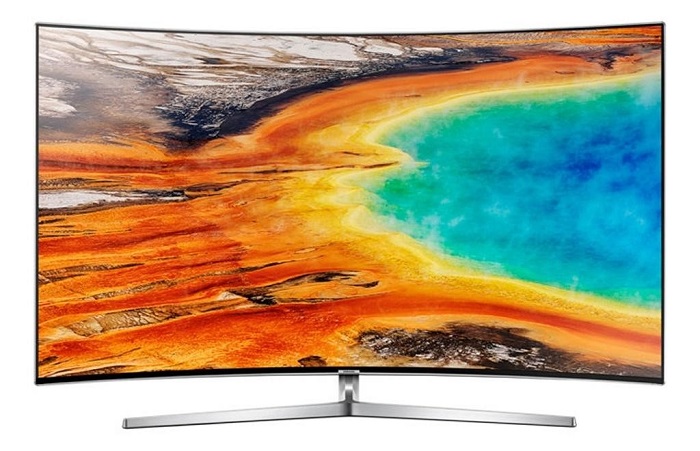
The Main Event: Decoding Your Smart TV’s Core Abilities
Before you can direct your own viewing saga, you need to get acquainted with your lead actors. These are the fundamental features that define what a smart TV can do. Understanding them is the first step in learning how to use smart tv features effectively.
The App Universe: Your Gateway to Endless Content
The most obvious feature is the app store. This isn’t just about Netflix, Hulu, and YouTube anymore. The app ecosystem on modern TVs is vast and varied.
- Streaming Services: From giants like Disney+ and Amazon Prime Video to niche services like Shudder for horror fans or Crunchyroll for anime lovers, there’s an app for every taste.
- Live TV Streaming: Services like Sling TV, YouTube TV, and FuboTV let you cut the cord from traditional cable without losing access to live sports, news, and network shows.
- Utilities and More: You can find everything from fitness apps like Peloton, music streaming with Spotify, and even simple games or weather applications.
Televisionado Pro Tip: Don’t just stick to the pre-installed apps. Spend 30 minutes exploring your TV’s app store. You might discover your next favorite streaming service you never even knew existed. It’s like finding a hidden gem of a show in the “deep cuts” category.
What is Screen Mirroring and Casting?
This is where many people get tripped up, but it’s simpler than a classic sitcom plot. Both let you show content from your phone, tablet, or laptop on your TV, but they work differently.
- Screen Mirroring: Think of this as a direct clone. Whatever is on your device’s screen—your home screen, a photo gallery, a website—is displayed exactly as-is on the TV. It’s great for presentations or showing off vacation photos to the family. It’s a “what you see is what you get” deal.
- Casting (or Chromecast, AirPlay): This is the smarter, more elegant solution. When you “cast” a video from an app like YouTube or Netflix on your phone to the TV, you’re not sending the video file itself. You’re sending a command to your TV, telling it, “Hey, go fetch this video from this internet address.” The TV then streams the content directly from the web. The huge benefit? You can continue using your phone for other things—texting, browsing, taking calls—without interrupting the show.
Voice Control: Your Personal Remote Assistant
Remember fumbling with the remote, trying to type out “The Mandalorian” one letter at a time? Those days are over. Modern smart TV remotes come with built-in microphones for voice commands. You can:
- Search for content: “Show me action movies with Keanu Reeves.”
- Control playback: “Pause,” “Rewind 30 seconds,” “Play the next episode.”
- Open apps: “Open Spotify.”
- Adjust settings: “Turn the volume up to 20,” “Change picture mode to Cinema.”
Some TVs even integrate with smart home assistants like Amazon Alexa or Google Assistant, allowing you to control your lights or check the weather right from your TV remote. It’s less Black Mirror dystopia and more a genuinely useful convenience.
Mastering the Director’s Chair: How to Use Smart TV Features
Knowing what the features are is one thing. Using them to craft a perfect viewing experience is another. Let’s move from theory to practice and get your TV set up just the way you like it.
|
Our Picks for the Best Television in 2026
As an Amazon Associate, we earn from qualifying purchases.
|
||
| Num | Product | Action |
|---|---|---|
| 1 | Electric Spin Scrubber - Cordless Cleaning Brush with Digital Display, 2 Speeds, 8 Brush Heads, IPX7 Waterproof, Adjustable Long Handle for Bathroom, Tub, Tile, Shower, and Car |

|
Customizing Your Home Screen for a Binge-Worthy Experience
Your TV’s home screen is your personal content dashboard. Don’t settle for the default layout. Most smart TV operating systems—whether it’s Google TV, Samsung’s Tizen, LG’s webOS, or Roku—allow for deep customization.
- Reorder Your Apps: Place your most-used apps (let’s be honest, it’s probably Netflix) at the very beginning of the list for quick access.
- Remove Bloatware: Did your TV come with a bunch of pre-installed apps you’ll never use? Delete or hide them to declutter your interface.
- Use “Continue Watching” Rows: Most systems aggregate what you’ve been watching across different services into one convenient row. Make sure this is front and center. It’s like having a personal assistant who remembers you were halfway through that tense interrogation scene in Line of Duty.
What Are the Best Picture and Sound Settings?
The short answer is: there’s no single “best” setting, but the “Movie” or “Cinema” preset is almost always the most accurate starting point. Factory settings are often too bright and unnaturally vibrant, designed to stand out on a showroom floor.
Dive into the settings menu. You don’t need to be a professional calibrator, but understanding a few basics will drastically improve your picture quality.
| Setting | What It Does | Televisionado’s Recommendation |
|---|---|---|
| Picture Mode | A preset collection of settings for brightness, contrast, etc. | Start with “Cinema” or “Filmmaker Mode” for the most accurate colors, as the director intended. |
| Backlight | Controls the overall brightness of the screen. | Adjust this based on your room’s lighting. Lower it for dark-room viewing to reduce eye strain. |
| Motion Smoothing | Artificially adds frames to reduce motion blur. | Turn it off. This is the infamous “soap opera effect” that makes cinematic films look like cheap daytime dramas. |
| Sound Mode | Similar to picture modes, these are audio presets. | Experiment! “Cinema” or “Surround” modes can enhance movie nights, while “Clear Voice” can help with dialogue-heavy shows. |
Connecting Your Devices: Creating a Seamless Ecosystem
A smart TV is a team player. Use its various ports and wireless capabilities to build a connected hub.
- HDMI ARC/eARC: This special HDMI port sends audio from your TV to a soundbar or AV receiver. It means you can control your sound system’s volume with your TV remote, simplifying your setup immensely.
- Bluetooth: Easily connect wireless headphones for late-night viewing without waking the house, or pair a Bluetooth keyboard to make searching and logging into apps a breeze.
- USB Ports: Play media files directly from a USB stick, or in some cases, power a streaming stick like a Fire Stick or Roku.
As media analyst Dr. Isabelle Reed notes, “The modern smart TV isn’t an isolated device; it’s the central node in a home’s digital network. Its ability to communicate with other gadgets is just as important as the quality of its display.”
Frequently Asked Questions (FAQ)
Can I use a smart TV without an internet connection?
Yes, you can. A smart TV will function like a regular “dumb” TV without internet. You can connect devices like a cable box, Blu-ray player, or gaming console via HDMI and watch them without issue. However, you will lose access to all the “smart” features, including streaming apps, voice control, and software updates.
How do I update my smart TV’s software?
Most smart TVs will automatically prompt you to update when one is available. You can also manually check for updates in the settings menu, usually under a “Support,” “System,” or “About This TV” section. Keeping your TV’s software up to date is crucial for security and performance.
Are smart TVs secure and do they collect my data?
Like any internet-connected device, smart TVs can be vulnerable. It’s important to use strong, unique passwords for your streaming accounts. As for data, yes, manufacturers and app developers collect viewing data to provide personalized recommendations and targeted advertising. You can usually manage some of these privacy settings in the TV’s menu.
Why is my smart TV so slow?
Over time, your TV’s cache can fill up, and having too many apps installed can slow it down. Try clearing the cache (an option in the settings), uninstalling apps you don’t use, and performing a periodic restart (unplugging it for a minute) to refresh the system.
Can I add more storage to my smart TV?
Some smart TVs, particularly those running on Google TV or Android TV, allow you to expand storage by plugging in a USB flash drive or external hard drive. This can be formatted as internal storage to give you more space for apps. Check your TV’s manual to see if this feature is supported.
Your Final Scene
Mastering how to use smart tv features is about shifting your mindset. Your television is no longer a passive screen you simply watch; it’s an interactive canvas you can shape and control. By customizing your home screen, dialing in your settings, and embracing the power of apps and voice control, you elevate your viewing from a simple pastime to a truly curated, cinematic experience. So go ahead, pick up that remote, and start directing. The best show in your house is the one you create for yourself. What’s the first feature you’re going to explore?