So, you’ve just unboxed that beautiful, wafer-thin 4K HDR television. You’ve mounted it, plugged it in, and fired up the first episode of Severance. But something’s… off. The stark, minimalist corridors of Lumon Industries look strangely glossy, and Mark Scout moves with a slick, unnatural smoothness. You’re not getting the cinematic experience you paid for. The truth is, finding the Best Tv Picture Settings is the most crucial, yet often overlooked, step to unlocking your TV’s true potential. And let’s be honest, the factory defaults are almost always designed to look flashy in a big-box store, not faithful in your living room.
Think of your television not as a device, but as a canvas. The directors, cinematographers, and colorists—the artists—painted a very specific picture. Your job, as a discerning viewer, is to make sure your canvas is primed to display that art exactly as they intended. It’s the difference between seeing The Mandalorian’s dusty, sun-beaten landscapes as a gritty space western versus a cheap-looking soap opera.
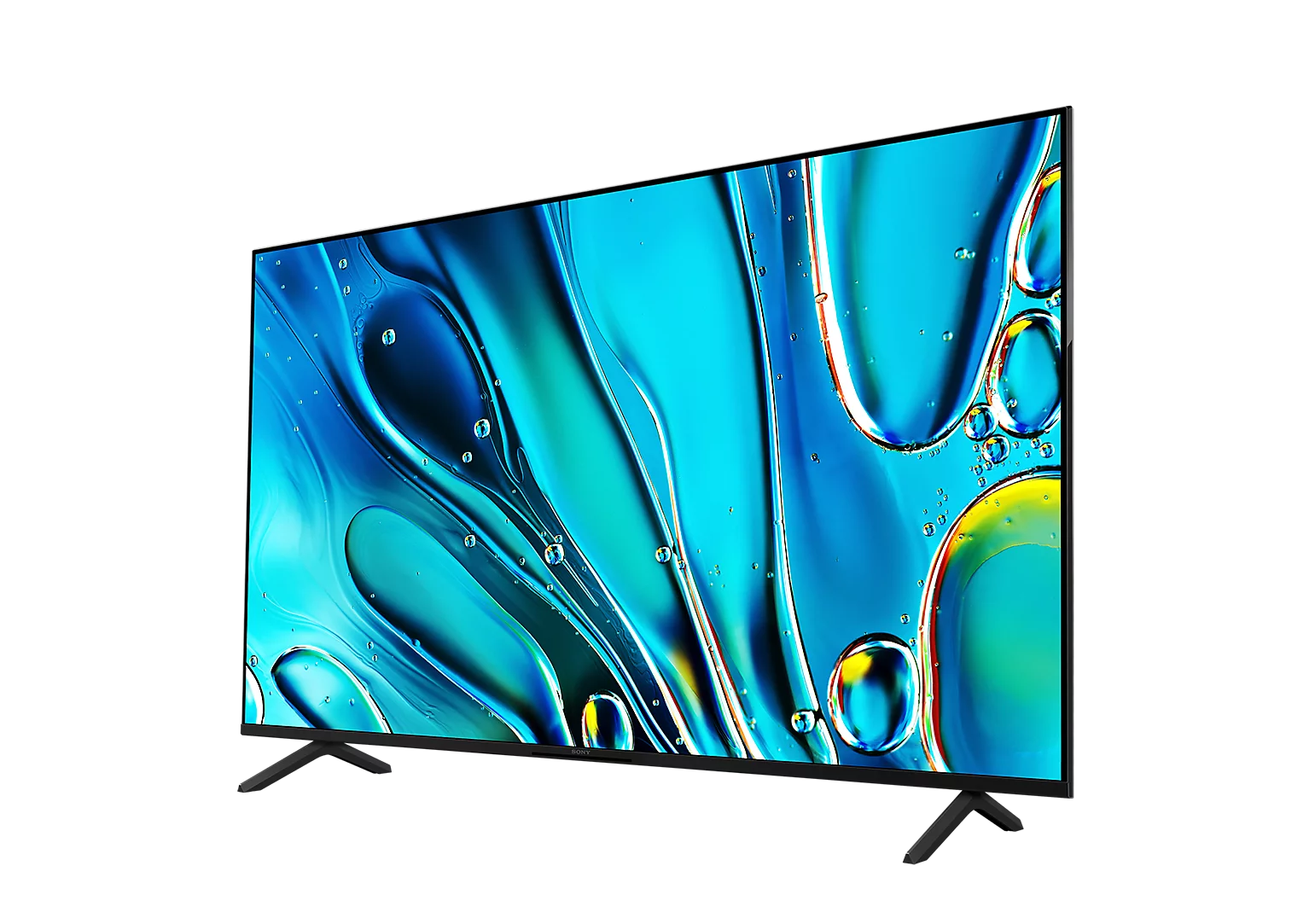
Why Do Default TV Settings Fail Us?
Before we dive into the nitty-gritty, let’s address the elephant in the room: why are the out-of-the-box settings so universally wrong? TV manufacturers are in a battle for your eyeballs on a brightly lit showroom floor. To stand out, they crank everything up to eleven.
- Brightness and Contrast: Jacked up to piercing levels to combat harsh fluorescent lighting.
- Color: Oversaturated to make cartoons and logos “pop.”
- Sharpness: Artificially enhanced to create a false sense of detail.
- Motion Smoothing: This is the big one. It’s an algorithm that inserts fake frames to make motion look smoother. While it might sound good on paper, it creates the dreaded “Soap Opera Effect,” robbing a show like Succession of its filmic texture and making it look like a low-budget daytime drama.
Our goal is to undo this showroom sabotage and achieve a natural, accurate picture.
The Foundation: Finding the Right Picture Mode
Your first and most important step is choosing the correct Picture Mode. This single selection governs a whole suite of underlying settings.
What is the best picture mode to start with?
The best picture mode is almost always “Filmmaker Mode,” “Movie,” or “Cinema.” These presets are specifically designed to disable most of the aggressive post-processing (like motion smoothing and artificial sharpening) and present an image with colors and brightness levels that are closest to the industry standard used in mastering studios.
If your TV has Filmmaker Mode, use it. It’s a collaboration between filmmakers and manufacturers to create a one-click solution for cinematic accuracy. If not, “Movie” or “Cinema” is your next best bet. Avoid modes like “Vivid,” “Dynamic,” or “Sports” for watching films and scripted series at all costs. Think of “Vivid” mode as putting a gaudy Instagram filter over the Mona Lisa.
A Deep Dive into the Best TV Picture Settings
Once you’ve selected the right mode, it’s time to fine-tune. Don’t be intimidated by the menus; we’ll walk through the most important settings one by one. Grab your remote.
Backlight vs. Brightness: Controlling the Light
These two are often confused, but they do very different things.
- Backlight (for LED/LCD TVs) / OLED Light (for OLED TVs): This controls the overall intensity of the light source. Think of it as a master dimmer for the entire screen. Adjust this based on your room’s ambient lighting. For a dark room, you might set it lower (20-40 range). For a bright, sunlit room, you’ll need to turn it up (70-100). This is the primary setting you should adjust for viewing comfort.
- Brightness: This adjusts the black levels, or how dark the darkest parts of the image are. Set it too low, and you’ll “crush the blacks,” losing all detail in the shadows of a scene from The Batman. Set it too high, and blacks will look like a washed-out gray. The sweet spot is usually right around the default of 50.
Contrast and Color: Defining the Image
These settings give your picture its punch and accuracy.
- Contrast: This controls the white levels, or the brightest parts of the image. The goal is to have bright whites without “clipping,” where you lose detail in bright objects like clouds or explosions. Like Brightness, the default of 80-95 is often a good place to start.
- Color (or Saturation): This determines the intensity of the colors. The oversaturated “Vivid” mode might make a nature documentary look vibrant, but it will make actors look like they have a terrible sunburn. The “Movie” or “Filmmaker” preset usually gets this very close to perfect. A setting around 50 is typical.
- Tint (or Hue): This adjusts the balance between green and red. Unless you see a noticeable green or magenta push in skin tones, you should almost always leave this at its default center position.
|
Our Picks for the Best Television in 2026
As an Amazon Associate, we earn from qualifying purchases.
|
||
| Num | Product | Action |
|---|---|---|
| 1 | Electric Spin Scrubber - Cordless Cleaning Brush with Digital Display, 2 Speeds, 8 Brush Heads, IPX7 Waterproof, Adjustable Long Handle for Bathroom, Tub, Tile, Shower, and Car |

|
Sharpness: Less is Almost Always More
This is perhaps the most misunderstood setting. You’d think more sharpness is better, right? Wrong. The “Sharpness” control doesn’t add real detail; it adds artificial edge enhancement, creating a harsh, digital-looking halo around objects.
“The pursuit of ‘sharpness’ on a consumer display is often a fool’s errand. True detail is captured in the lens, not created by an algorithm in your TV. The goal should be to disable any artificial sharpening, which only serves to corrupt the original image.” – Dr. Alistair Finch, Digital Imaging Specialist
For most 4K TVs, the correct sharpness setting is either 0 or very close to it. On some sets (like Sony), a setting of 50 is the “zero” point with no processing. The key is to find the setting that removes that distracting artificial edge.
Motion Processing: Taming the Soap Opera Effect
This is the final boss of picture settings. It goes by many names: Motionflow (Sony), TruMotion (LG), Auto Motion Plus (Samsung). Whatever it’s called, its job is to reduce motion blur and judder. Our job is to turn it off for movies and TV shows.
- Find the Motion Settings: Dive into your TV’s advanced picture menu.
- Disable It: Look for options like “De-Judder” and “De-Blur.” Turn them down to 0 or off.
- Black Frame Insertion (BFI): Some TVs have a feature called “OLED Motion Pro” or “Clearness.” This inserts a black frame between frames to improve clarity. It can be effective, especially for sports, but it often causes the screen to dim and can introduce flicker. Use it with caution.
The one exception? Live sports. The smooth, high-frame-rate look can actually be beneficial for tracking a fast-moving ball or puck. For everything else, turn it off and respect the 24 frames-per-second magic of cinema.
Tailoring Settings for Your Favorite Content
The best tv picture settings aren’t one-size-fits-all. Here’s how to tweak them for different experiences.
- Cinematic TV Series (Better Call Saul, The Crown): Stick to Filmmaker/Movie mode. Ensure motion smoothing is off. You want to preserve the film grain and the deliberate, artistic motion blur intended by the director of photography.
- Live Sports: Here, you can experiment. Start with a “Sports” mode, but be prepared to dial back the cartoonish colors. Try a low level of motion interpolation (“De-Blur”) to keep the action clear without making the players look like they’re gliding on ice.
- Video Games: This is critical. Almost every modern TV has a “Game Mode.” You must use this. It does one vital thing: it bypasses most of the picture processing to dramatically reduce input lag—the delay between you pressing a button and the action happening on screen. It is the single most important setting for a responsive gaming experience.
Frequently Asked Questions
What are the best TV picture settings for a bright room?
In a bright room, your primary adjustment should be the Backlight or OLED Light. Increase it until the image is bright enough to overcome glare. You may also want to enable a “Peak Brightness” setting for HDR content if your TV has it. Avoid increasing the main “Brightness” control, as this will wash out your black levels.
Should I use my TV’s HDR settings?
Absolutely. If you are watching HDR (High Dynamic Range) content from a source like Netflix, Disney+, or a 4K Blu-ray, your TV should automatically switch to its HDR picture mode. The same general rules apply: use the “Filmmaker” or “Cinema” HDR mode and ensure motion smoothing is off. HDR is designed to provide more realistic highlights and a wider range of colors.
Why does my TV picture look like a soap opera?
This is the “Soap Opera Effect,” caused by motion interpolation or motion smoothing settings (like TruMotion or Auto Motion Plus). To fix it, go into your TV’s advanced picture settings, find the motion controls, and turn all “De-Judder” and “De-Blur” sliders to 0 or off.
Are the “Vivid” or “Dynamic” picture modes ever a good choice?
Rarely. These modes are calibrated for retail showrooms to grab attention. They produce a wildly inaccurate, oversaturated, and over-sharpened image that destroys detail in both bright and dark areas. The only potential use case might be for a TV used for digital signage in a commercial setting, but for home viewing, they should be avoided.
How often should I calibrate my TV settings?
After your initial setup and fine-tuning, you generally don’t need to recalibrate unless your viewing environment changes drastically (e.g., moving the TV to a much brighter or darker room). The settings should hold for the life of the TV. That said, it can be fun to revisit them once a year to see if you can eke out any more performance.
The Final Frame
Calibrating your television isn’t just a technical exercise; it’s an act of appreciation for the art of television. It’s about ensuring that when you sit down to watch the next big prestige drama, you’re seeing the full emotional and visual impact the creators painstakingly crafted. By taking 20 minutes to dial in the best tv picture settings, you transform your TV from a simple display into a true window into other worlds. Now, go forth, adjust, and see what you’ve been missing. We’d love to hear about your before-and-after moments in the comments below.