So, you’ve just unboxed your shiny new Chromecast with Google TV, or maybe a slick new Sony Bravia. You’re staring at that vibrant home screen, a gateway to a universe of stories. Finding the Best Apps For Google Tv is your next mission, and it’s more crucial than you think. This isn’t just about downloading Netflix and calling it a day. This is about transforming your television from a passive screen into a curated, personalized command center for entertainment. Out of the box, your Google TV is a blank canvas. The real magic? It’s in the apps.
Think of it like casting a TV show. You need the right players in the right roles to make the whole production sing. Some apps are the leading stars, the ones you’ll use every single day. Others are the brilliant character actors, the specialists that elevate the entire experience from good to unforgettable. As your guide at Televisionado, I’ve spent countless hours tinkering, testing, and, of course, binge-watching. Let’s pull back the curtain and reveal the essential cast of apps that will make your Google TV the star of your living room.
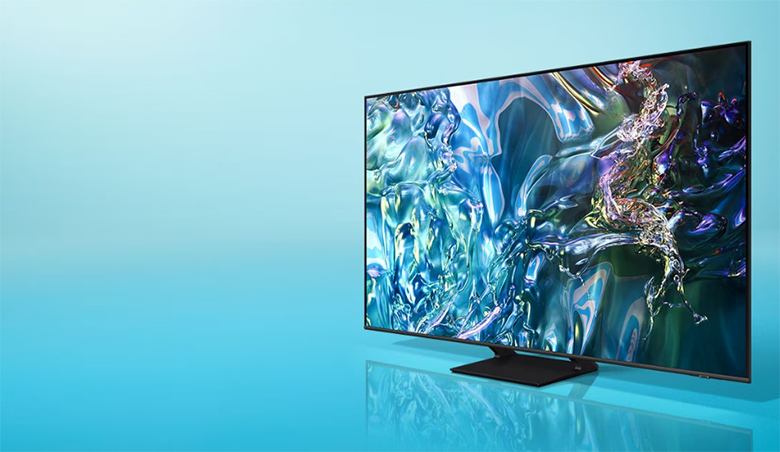
The Streaming Titans: Your Bread and Butter
Let’s get the obvious, yet essential, players on the stage first. These are the non-negotiables, the foundation of any modern streaming setup. You likely already know them, but the key is understanding how they integrate so seamlessly with the Google TV interface.
- Netflix: The undisputed heavyweight champion. Its integration with Google TV’s “Continue Watching” row and recommendation engine is top-notch. If a show like Stranger Things or The Crown is on your list, Google TV will put it front and center.
- Max (formerly HBO Max): This is where you go for prestige television. From the brutal boardroom battles of Succession to the sprawling epic of House of the Dragon, Max delivers cinematic quality. Its 4K and Dolby Atmos content looks and sounds absolutely stunning on a capable setup.
- Disney+: The home of Marvel, Star Wars, Pixar, and a vault of nostalgia. For families, it’s a must-have. For the rest of us, it’s where you’ll find culturally dominant shows like The Mandalorian and critically acclaimed gems like Andor.
- Amazon Prime Video: Often the overlooked titan, Prime Video has a ridiculously deep catalog. It’s not just about mega-hits like The Boys or The Lord of the Rings: The Rings of Power; it’s the sheer volume of licensed movies and older TV series that makes it a powerful supporting player.
- Hulu: If you’re in the US, Hulu is your ticket to next-day network television and a growing slate of fantastic originals. Think The Bear or Only Murders in the Building. The Live TV option also makes it a strong contender for cord-cutters.
For the Cinephile and Power User: Beyond the Basics
Okay, you’ve got the basics covered. Now, let’s talk about the apps that separate the casual viewer from the true Televisionado. These are the tools for those of us who obsess over bitrates, collect digital media, and want total control over our viewing experience.
What are the best apps for Google TV for managing my own media?
For anyone with a personal library of movies, TV shows, or home videos, the answer is a two-horse race: Plex and Kodi. They solve the same problem but with vastly different philosophies.
- Plex: The “It Just Works” Media Server
Plex is elegance personified. You install the Plex Media Server on a PC or NAS drive, point it to your media folders, and it does the rest. It automatically downloads beautiful artwork, plot summaries, and cast information, organizing your collection into a slick, Netflix-style interface. The Google TV app is a client that streams this content flawlessly. It’s incredibly user-friendly and perfect for sharing your library with family, even outside your home. I remember setting up my first Plex server; seeing my messy folder of digital files transform into a polished, professional library felt like pure magic. - Kodi: The Infinitely Customizable Powerhouse
Kodi is the open-source, DIY alternative. It doesn’t require a separate server; it works directly with files on a USB drive or network location. Its real power lies in its customizability. Through add-ons and skins, you can make Kodi look and behave exactly how you want. Want to integrate a specific subtitle service or tweak your audio passthrough settings for that perfect Dolby Atmos signal? Kodi is your playground. It requires more tinkering, but for the user who wants granular control, nothing else comes close.
|
Our Picks for the Best Television in 2026
As an Amazon Associate, we earn from qualifying purchases.
|
||
| Num | Product | Action |
|---|---|---|
| 1 | Electric Spin Scrubber - Cordless Cleaning Brush with Digital Display, 2 Speeds, 8 Brush Heads, IPX7 Waterproof, Adjustable Long Handle for Bathroom, Tub, Tile, Shower, and Car |

|
Other Niche Streaming Heroes
- The Criterion Channel: For the serious film lover. This isn’t about the latest blockbusters; it’s a meticulously curated library of classic, international, and art-house cinema. It’s a film school education for a monthly fee.
- Shudder: Horror fans, rejoice. Shudder is an all-horror streaming service that features everything from stone-cold classics to exclusive, terrifying originals. Its collection is curated by people who genuinely love the genre.
- MUBI: Similar to Criterion but with a unique twist. MUBI presents a “film of the day” every day, with each film being available for just 30 days. It’s a fantastic way to discover new and interesting cinema without the paralysis of endless choice.
As television analyst Dr. Alistair Finch notes, “The proliferation of niche streaming services marks a ‘golden age’ for the enthusiast. Viewers are no longer beholden to the monolithic catalogs of the giants. They can curate their digital diet with apps tailored to specific genres and sensibilities, from horror to classic Japanese cinema. Google TV acts as the perfect aggregator for this new, fragmented landscape.”
The Cord-Cutter’s Arsenal: Free and Live TV
Cutting the cable cord doesn’t mean giving up live TV or having to pay for everything. There’s a fantastic array of free, ad-supported apps that can fill the gaps in your entertainment lineup.
- YouTube TV / Sling TV / FuboTV: These are the big three for live TV replacement in the US. They offer packages that replicate the traditional cable experience, including local channels, sports, and news, all through a single app. They’re not free, but they’re often cheaper and more flexible than a cable contract.
- Pluto TV: This is my top pick for a truly free, cable-like experience. It presents hundreds of channels in a familiar grid guide, dedicated to everything from 24/7 Star Trek reruns to news and movie channels. It’s lean-back viewing at its finest.
- Tubi: Tubi has a surprisingly phenomenal on-demand library of movies and TV shows, all completely free with ads. You can find some real hidden gems and cult classics here that aren’t available on the big subscription services.
Essential Utilities: The Unsung Heroes of Google TV
Finally, let’s talk about the apps that work behind the scenes. They might not be as glamorous as a streaming service, but they are crucial for a smooth, powerful, and unrestricted Google TV experience.
How can I enhance my Google TV’s functionality?
A few key utility apps can completely change the game, turning your device from a simple streamer into a versatile media hub.
- A Good File Manager (FX File Explorer or Solid Explorer): Google TV doesn’t come with a built-in file manager. Installing one is essential, especially if you plan to sideload apps or manage files on a connected USB drive. They make navigating the device’s storage a breeze.
- A VPN (NordVPN or ExpressVPN): A Virtual Private Network is a must-have for two reasons. First, privacy and security. It encrypts your internet traffic, keeping your viewing habits private. Second, it allows you to bypass geographic restrictions. Want to watch the BBC iPlayer from outside the UK or access a different country’s Netflix library? A VPN is the key.
- Send Files to TV: A brilliantly simple app with a single purpose: to easily transfer files (like app APKs for sideloading or personal videos) from your phone or computer directly to your Google TV over your Wi-Fi network. It’s a tool you won’t use every day, but when you need it, it’s a lifesaver.
Frequently Asked Questions (FAQ)
Q1: Can I install apps on Google TV that are not in the Google Play Store?
A: Yes, you can. This process is called “sideloading.” It involves enabling Developer Mode on your device, downloading the app’s APK file, and using a file manager and an installer app to install it. It’s a great way to access apps that might not be officially supported.
Q2: What’s the best app for streaming local sports on Google TV?
A: This heavily depends on your location and the sports you watch. For major leagues in the US, services like YouTube TV and FuboTV are excellent as they include local broadcast channels (CBS, NBC, Fox) and regional sports networks. The ESPN app is also essential for a huge variety of games.
Q3: Are there any good web browsers for Google TV?
A: While browsing on a TV isn’t always ideal, there are options. Puffin TV is a popular choice designed for TV interfaces, but you can also sideload more standard browsers like Google Chrome for a more desktop-like experience, though you’ll likely want a Bluetooth keyboard and mouse.
Q4: How can I improve streaming quality and reduce buffering?
A: First, ensure you have a strong Wi-Fi signal or, ideally, use a wired Ethernet connection via an adapter. Second, within apps like Netflix, check your playback settings to ensure they are set to the highest quality. Finally, closing other apps running in the background can free up system resources and improve performance.
Q5: Can I customize the Google TV home screen?
A: To an extent. You can reorder your apps in the “Your apps” row. In the settings, you can also enable “Apps-only mode,” which provides a much simpler interface without Google’s recommendations. For total customization, you would need to install a third-party launcher, which is a more advanced process.
Choosing the best apps for Google TV is ultimately about tailoring the device to your specific viewing habits. Your setup might look completely different from mine, and that’s the beauty of it. The platform is a flexible foundation, and the apps are the building blocks you use to construct your perfect entertainment sanctuary. So go ahead, experiment, download, and discover. Turn that screen into a portal that reflects exactly who you are as a viewer.
Now, I turn it over to you. What are your essential, can’t-live-without Google TV apps? Did I miss a hidden gem? Drop your recommendations in the comments below and let’s build the ultimate guide together. Happy viewing.